
Watch a run: in your browser and inside Herdr
While a run goes, three views show it. None of them changes the run: they only read it.
| View | Where | Start it |
|---|---|---|
| orch view | your browser (and your phone, if you want) | orch view |
| orch board | any terminal, e.g. a Herdr pane or popup | orch board |
| sidebar names | Herdr’s own sidebar | nothing: the event manager does it |
All three show each milestone with its id and a one-line description of what it is for (the plan’s Plain: line, or the title when there is none), so you see what is being built, not only M2.
orch view (browser)
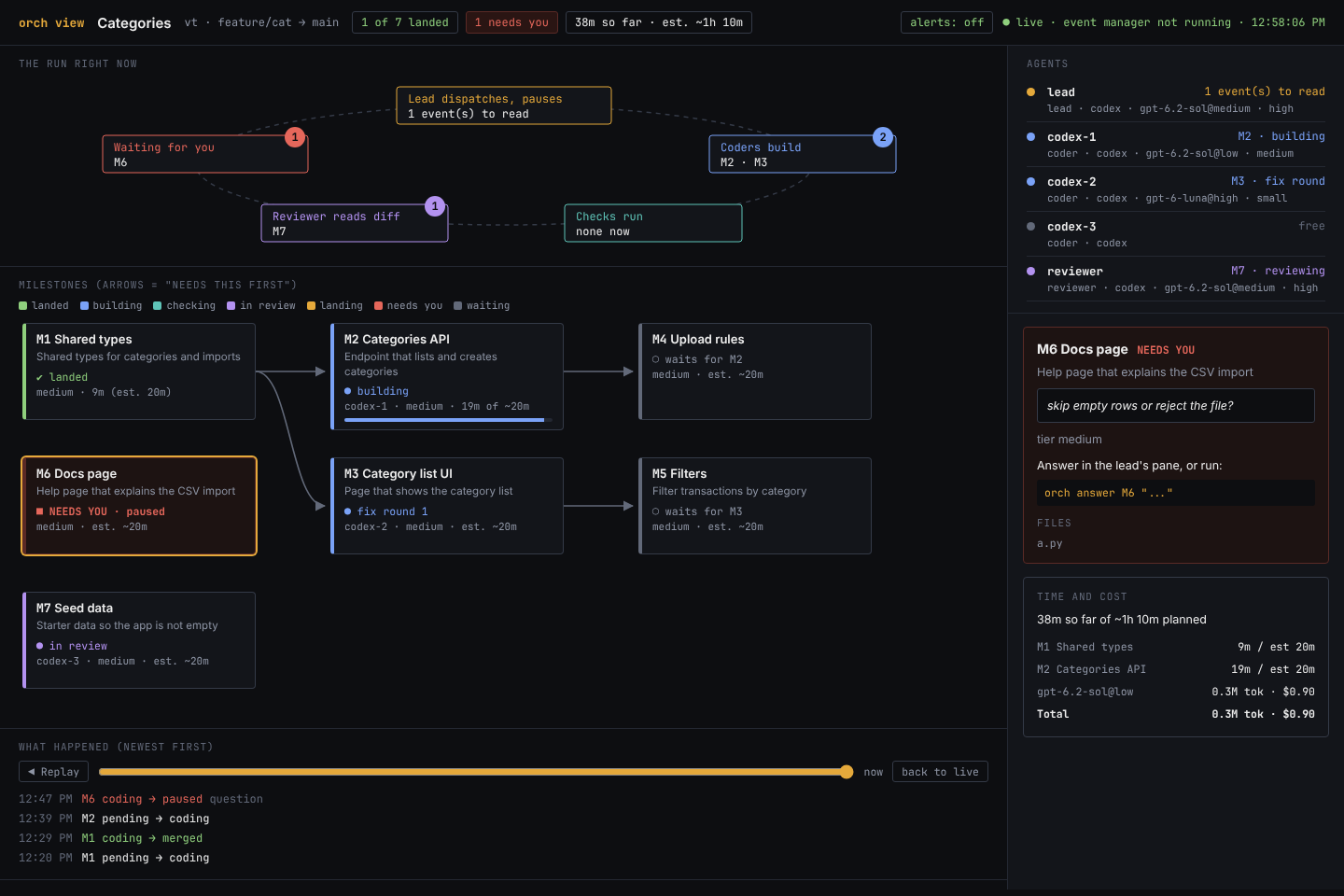
Section titled “orch view (browser)”$ orch vieworch view: http://127.0.0.1:47231/ (Ctrl-C to stop)It opens your browser. The page updates by itself the moment the run changes.
- The run ring on top: the five stops of a run (lead, coders, checks, reviewer, waiting for you), with how many milestones are at each.
- The milestone graph: one box per milestone, arrows for “needs this first”, coloured by where it is. Red means it needs you.
- Click a milestone for its description, the question it asks, the exact command to answer it (
orch answer M6 "..."), its steps so far and its files. - Agents: every coder, the reviewer and the lead, with model, tier and what they hold.
- Time and cost: time so far against the lead’s estimate, each milestone against its own estimate (and why one took longer), and tokens and cost per model when the agents report them.
- Replay: press Replay and drag the slider to watch the run again step by step. Works for a finished run too.
- Alerts: press alerts: off once to turn on a browser notification whenever a milestone starts to need you.
Other ways to start it:
| Command | What it does |
|---|---|
orch view --bg |
start it in the background; orch view stop stops it |
orch view status |
print its link |
orch view --port 8080 |
use that port |
orch view --no-open |
do not open the browser |
orch view --lan |
also reachable from your phone on the same Wi-Fi, with a secret link (the page refuses without it). Off unless you ask. |
While it runs, orch status prints its link, and the lead’s “needs you” lines carry a link straight to that milestone. Over SSH, orch view prints the ssh -L line to use.
On a phone the graph becomes a list (“after M1” says what each milestone waits for) and the milestone that needs you sits at the top.
orch board (terminal)
Section titled “orch board (terminal)”orch board draws the same run as text and redraws when it changes: milestones as a tree with their descriptions, the agents, and the last events. ↑/↓ pick an agent, Enter jumps to its Herdr pane, w starts the browser view, q closes. orch board --once prints it one time.
Open it in a Herdr split or tab. To open it as a popup with one key, link the small Herdr plugin that comes with orch (Herdr 0.7.4 or newer):
orch view plugin link # undo: orch view plugin unlinkorch view herdr-config # prints the key binding (and the sidebar rows below) for herdr's configTo press one key for the popup, add this to Herdr’s config.toml and restart Herdr:
[[keys.command]]key = "prefix+a"type = "plugin_action"command = "herdr-orchestra.board.open"description = "orch run board"prefix+a means press your Herdr prefix (default ctrl+b), let go, then press a. It is not used by Herdr’s default keys. If you already use it, Herdr keeps your existing key and ignores this one, so pick another letter; prefix+? lists every key in use. The orch board command in a pane keeps working either way.
When the view shows an old run
Section titled “When the view shows an old run”The views read .orchestrate/state.json, which orch sync writes from .orchestrate/plan.md. orch reads that one file name only. A plan saved as .orchestrate/csv-import.md is never loaded, so state.json still holds the last run.
When no run is going, orch view (top bar), orch board and orch status say so in plain words: “This is the last run … No run is going now”, and, if there is a .orchestrate/*.md file orch does not read, “.orchestrate/csv-import.md is not used: orch only reads .orchestrate/plan.md”. Rename or copy the file to plan.md and run orch sync. orch sync itself also names such a file.
Agent names in Herdr’s sidebar
Section titled “Agent names in Herdr’s sidebar”During a run the event manager tells Herdr what each agent is doing, so Herdr’s normal sidebar reads like this:
● lead · waiting● codex-1 · M2 building● codex-2 · M3 fix round 1○ codex-3 · free● reviewer · reviewing M7 (round 1)This needs no setup (Herdr 0.6.3 or newer). It is display only: Herdr still finds each agent by its real name. Only changes are sent, on a separate thread, so it never slows the run. orch finish gives every agent its own name back; names also fade out by themselves an hour after the last change. Set ORCH_SIDEBAR=0 to turn it off.
For one more line per agent (its milestone’s description) and a run line on the Space (orch: 3/7 landed · 1 needs you), add the rows that orch view herdr-config prints to Herdr’s config (Herdr 0.7.4 or newer). orch doctor says which of these your Herdr supports.
For tools: the run summary
Section titled “For tools: the run summary”orch status --json prints the run as one stable JSON summary ("view": 1): milestones with status, group, description, dependencies, coder, time and cost; the agents; counts; recent status changes. Both views read it; see Files and docs/contracts.md in the repo.